Infura IPFS Is Shutting Down: How to Migrate

Infura is shutting down its IPFS service on August 15, 2026.
According to a notice sent to Infura customers, new uploads and pinning will stop on August 3. On August 15, Infura’s IPFS API and dedicated gateway access will end, and content that has not been moved will no longer be available through Infura.
Filebase includes a built-in Infura import tool that can move your pinned CIDs into a new IPFS bucket without requiring you to export and re-pin every CID by hand.
Important Infura IPFS shutdown dates
- August 3, 2026: New uploads and pinning will be disabled.
- August 15, 2026: Infura’s IPFS API and dedicated gateways will be shut down.
- Before August 15: Customers should move pinned content and update any applications or links that use Infura endpoints.
Your existing content may remain available through Infura until the final shutdown date, but it is best to begin the migration early enough to confirm that every CID has finished pinning.
How the Filebase Infura importer works
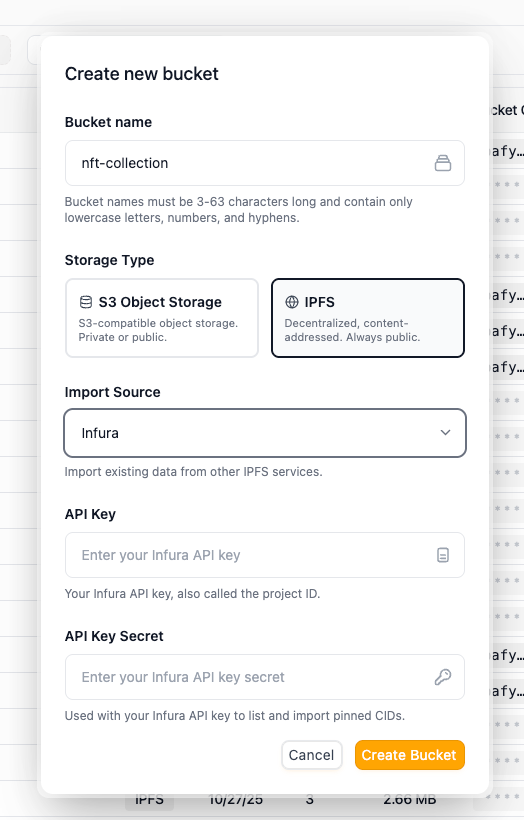
When you create an IPFS bucket in Filebase, you can choose Infura as the import source.
Filebase uses your Infura Project ID and Project Secret to find the CIDs pinned to your Infura account. It then imports and pins that content to your new Filebase bucket.
You do not need to enter each CID manually or write a custom migration script.
How to migrate from Infura to Filebase
1. Create or sign in to your Filebase account
Open the Filebase dashboard and go to Buckets.
2. Create a new bucket
Select the option to create a bucket, then choose IPFS as the bucket type.
Filebase supports both S3-compatible object storage buckets and IPFS buckets. For this migration, make sure you select an IPFS bucket.
3. Select Infura as the import source
In the bucket creation window, find the Import Source option and select Infura.
4. Enter your Infura credentials
Add your:
- Infura Project ID
- Infura Project Secret
Your Project ID acts as the API key. Filebase uses these credentials to list the pinned CIDs associated with your Infura account and begin importing them.
5. Create the bucket and let the import run
After you create the bucket, Filebase will begin syncing your pinned CIDs.
Objects in the bucket will show one of two statuses:
- Pinning: Filebase is still importing and pinning the content.
- Pinned: The content has finished pinning through Filebase.
The time required will depend on the amount and availability of the content being imported.
6. Confirm that your content is pinned
Return to the bucket and confirm that your important CIDs show a Pinned status.
Do not treat the migration as complete while objects still show Pinning.
It is also a good idea to retrieve several important files through Filebase and confirm that the content matches what you expect.
7. Update your application and gateway links
Importing your CIDs keeps the content pinned, but it does not automatically update your application code.
Before August 15, review any:
- Infura IPFS API endpoints
- Dedicated Infura gateway URLs
- Hard-coded asset links
- Backend environment variables
- Upload or pinning integrations
Replace those Infura references with the Filebase API or gateway configuration your application will use.
View the Filebase documentation
What should you check before finishing the migration?
Before relying on the new bucket in production, confirm that:
- Your expected CIDs appear in Filebase.
- Important objects show a Pinned status.
- Files can be retrieved successfully.
- Your application no longer depends on Infura endpoints.
- Upload and pinning workflows work through Filebase.
- Old Infura gateway links have been replaced where needed.
Keep your Infura setup unchanged until you have completed these checks.
Do you need to move immediately?
Infura says its service will continue operating until the dates listed in its customer notice. There is no need to panic, but there is a firm deadline.
Starting early gives you time to let larger imports finish, test your application, and fix any remaining Infura links before API and gateway access ends.
Move your Infura pins without migrating every CID by hand
Filebase’s built-in Infura importer gives customers a direct way to move pinned IPFS content into a new bucket.
Create an IPFS bucket, select Infura as the import source, enter your Project ID and Project Secret, and let Filebase begin syncing your CIDs.
Start your Infura IPFS migration before August 15, 2026.