How to Migrate Your IPFS Content from Fleek to Filebase

Fleek has announced that Fleek Hosting will be officially discontinued on January 31st, and all related subscriptions and recurring charges will automatically stop on that date. If you still have content pinned in Fleek, now is the time to migrate so you don’t lose access to your IPFS data.
To make this transition as easy as possible, Filebase has partnered with Fleek and shared a migration incentive for their existing users.
✅ Use promo code FLEEK to get your first month free on a $20 USD Filebase plan.
Even better: we built a one-click migration feature that imports all pinned IPFS CIDs from your Fleek project directly into Filebase.
In this guide, we’ll walk you through:
- How the Fleek → Filebase migration works
- The exact steps to import your CIDs
- How to find your Fleek Personal Access Token (PAT)
- How to locate your Fleek Project ID
- How to apply the FLEEK promo code for your free month
Why migrate to Filebase?
Filebase is an S3-compatible object storage platform with native IPFS pinning and dedicated IPFS gateways—so you can store, pin, and retrieve content using IPFS CIDs reliably at scale.
With Fleek Hosting ending on January 31st, migrating early ensures:
- You keep uninterrupted access to your pinned IPFS content
- Your applications continue working without downtime
- You don’t risk losing pinned data after the shutdown date
Introducing: Fleek → Filebase CID Migration (New Feature)
Filebase now supports importing IPFS content pinned in Fleek with just a few pieces of information:
- Your Fleek Personal Access Token
- Your Fleek Project ID
Once entered, Filebase will:
- Connect to Fleek’s GraphQL API
- Retrieve all pinned IPFS CIDs for your project
- Automatically migrate those CIDs into your new Filebase bucket
No manual copy/paste. No export scripts. No tedious re-pinning commands.
Step-by-step: Migrate Fleek IPFS CIDs into Filebase
Here’s the exact workflow:
1) Create a new bucket in Filebase
- In the Filebase dashboard, click Buckets
- Click the orange Create Bucket button (top-right)
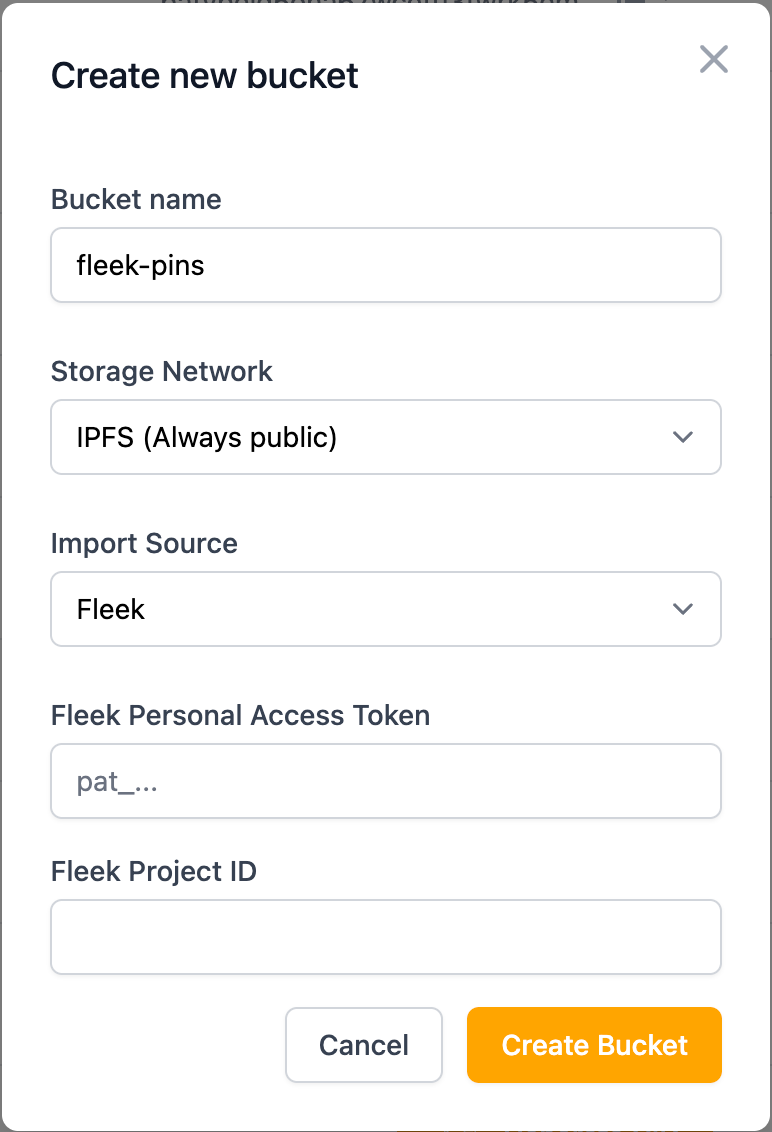
2) Choose “Fleek” as the import source
In the Create new bucket modal:
- Enter a Bucket name
- Select Fleek as the Import Source
3) Enter your Fleek PAT + Project ID
You’ll be prompted for:
- Fleek Personal Access Token (PAT)
- Fleek Project ID
(We’ll show you how to find both below.)
4) Click “Create Bucket”
Finally, click Create Bucket to start the migration.
✅ Filebase will immediately connect to Fleek, fetch your pinned CIDs, and begin importing them into your new bucket.
How to find your Fleek Personal Access Token (PAT)
You’ll generate this inside your Fleek account.
Steps:
- Log into the Fleek dashboard
- Click your Profile icon in the lower-left corner
- Select Account Settings
- Click the Personal Access Tokens tab
- Enter a name for the token
- Click Add token
Once created, copy the PAT and paste it into Filebase during bucket creation.
Tip: Keep your PAT secure—treat it like a password. It provides access to your Fleek project data.
How to find your Fleek Project ID
Your Fleek Project ID is embedded directly in your Fleek Hosting dashboard URL.
Steps:
- Navigate to your Fleek project dashboard
- Look at your browser’s address bar URL
Example URL:
https://hosting.fleek.xyz/dashboard/projects/cmk5fjynn000104l51k9u6pcm/home/
In that example, the project ID is:
cmk5fjynn000104l51k9u6pcm
Copy that value and paste it into Filebase during the migration flow.
Don’t forget: Use promo code FLEEK for a free month
Fleek has partnered with Filebase to offer a migration incentive:
🎁 Promo code: FLEEK
💰 Offer: First month free on a $20 USD Filebase plan
This is the fastest way to get started with Filebase while you migrate.
What happens after the import?
Once migrated:
- Your IPFS CIDs will be accessible in Filebase
- You can continue pinning new content as usual
- You can optionally configure a dedicated gateway for faster and branded retrieval
- Your apps can simply continue referencing the same CIDs (IPFS content identifiers remain the same)
In short: your CIDs don’t change—only where they’re pinned and served from.
Need help migrating?
If you run into any issues during the migration process, our support team is happy to help you get moved over quickly before Fleek Hosting ends on January 31st.
Ready to migrate?
Log in to Filebase, create your bucket, select Fleek as your import source, and migrate your project pins in minutes.
And don’t forget to use promo code FLEEK for your free month.